Bulk Bill Assignment of Benefit (BB AoB) is the process where a patient/claimant must sign a form (DB4) to assign their right to benefit.
Medicare have tightened their policies surrounding this, especially Telehealth which was previously able to be verbally assigned but cannot be any more*. These new rules come in to force 1st July 2026.
*Update: A 12 month transition period (until 1st July 2027) has been added to allow for all claims (any service type) to be verbally assigned.
There are two main types of BB AoB:
- Pre-Assignment - before Service Date
- Post Assignment - on/after Service Date
Please see further below for other considerations such as Reviewing AoB (before Batching etc).
Post Assignment
Post Assignment is what most practices will do on a daily basis, and is a streamlined process.
Bill as normal and click OK which will start the process.
Note: If prompted to use an existing Pre-Assigned AoB and you want to do so, click YES (refer to that section further below).
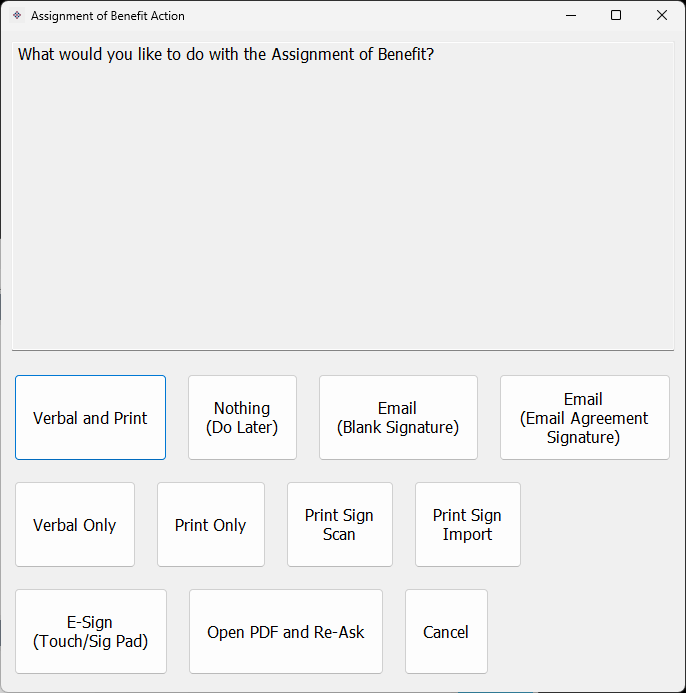
You will then be presented with a few options for AoB actions to collect signature/assignment:
Verbal
There is a 12 month transition period (until 1st July 202 where verbal AoB will be an acceptable method for all claims. You can do verbal only or verbal and also print the DB4.
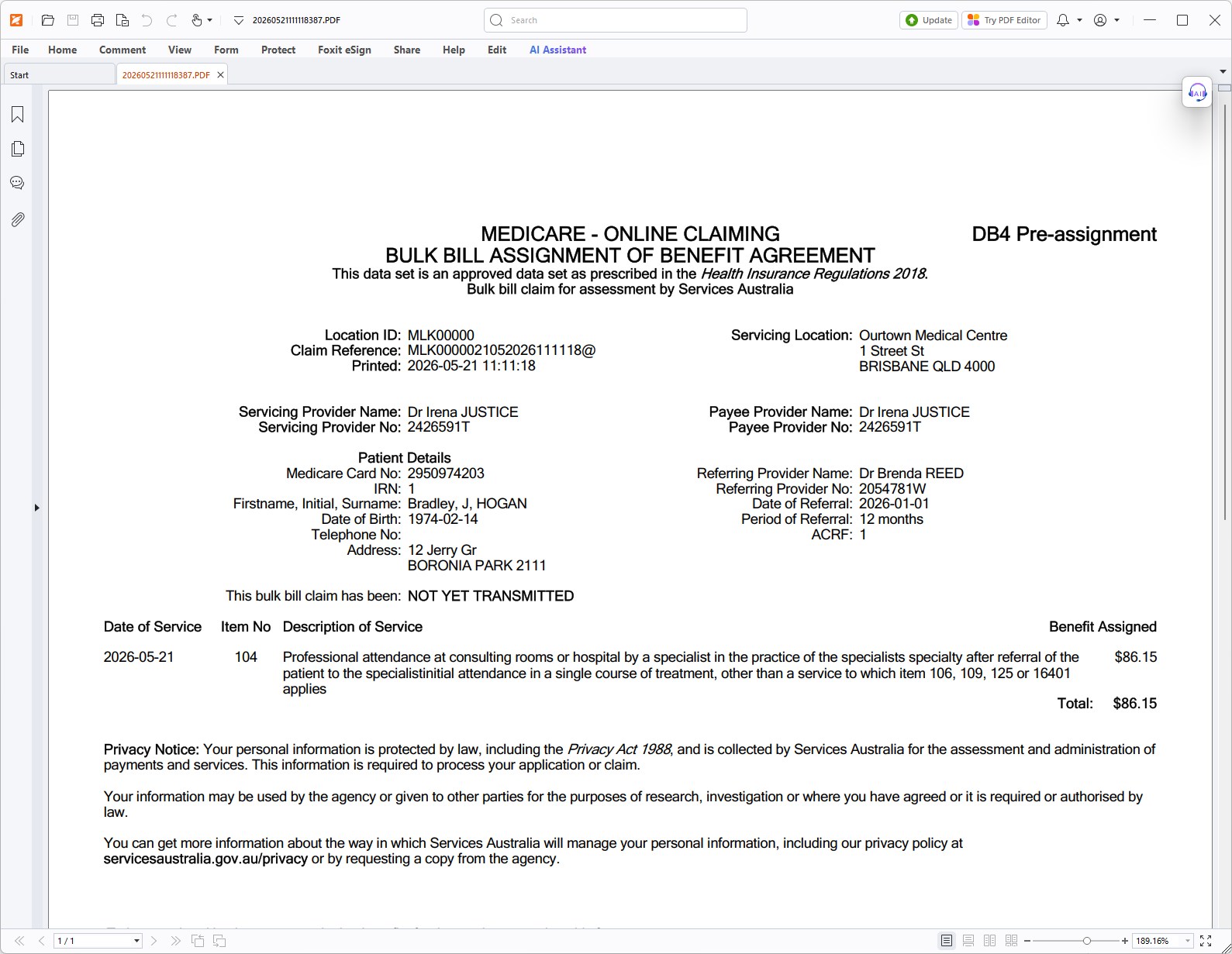
Will print an unsigned DB4, which the patient will need to physically sign. You can optionally scan and import on the fly, or choose Print Only and do this manually scan/import later and/or physically file away.
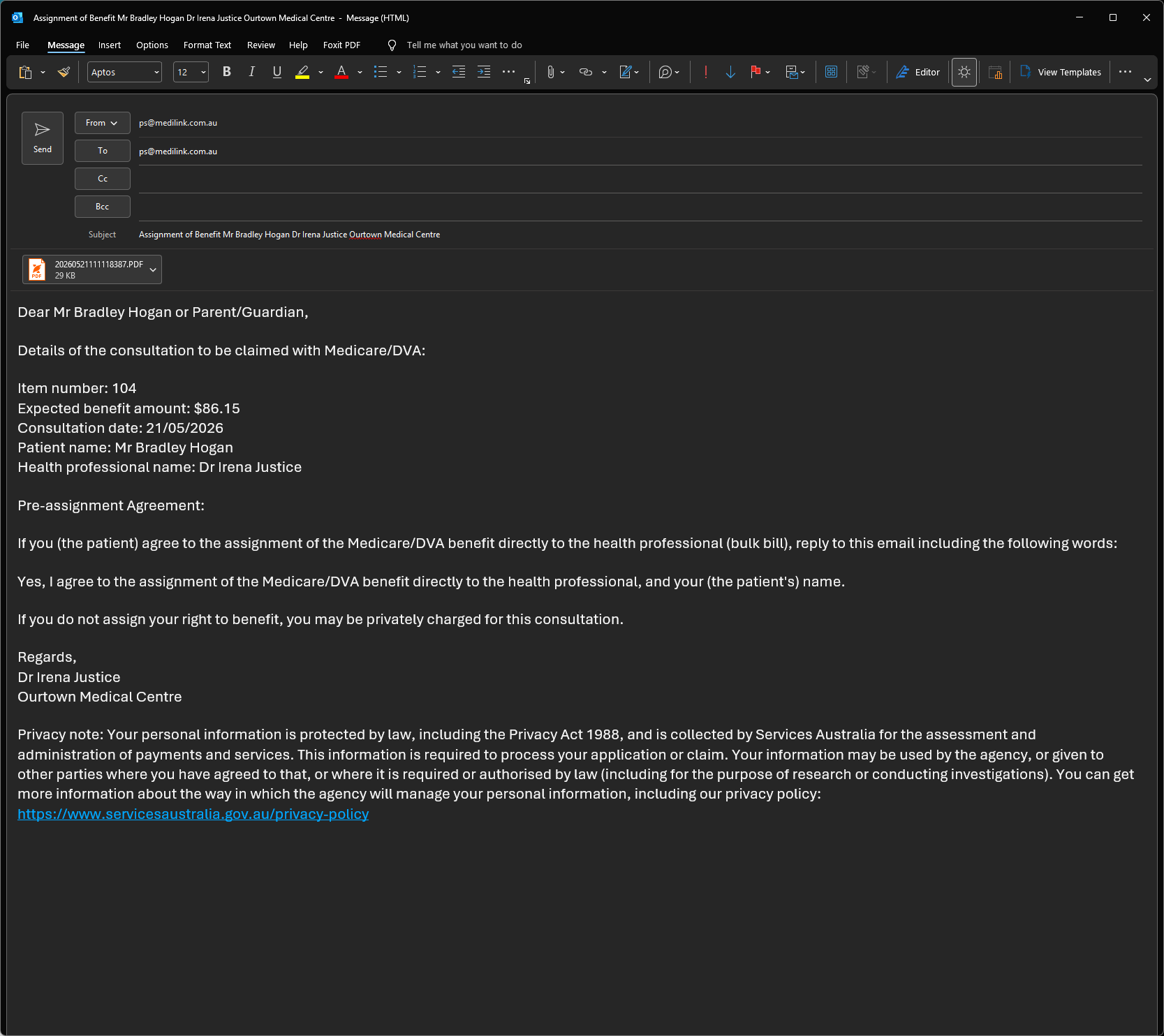
This shows a pre-composed email in your email client of choice. The patient should reply with "Yes, I agree to the assignment of the Medicare benefit directly to the health professional" (in practice we believe any affirmative response will be adequate). Note that the email will have an attached DB4 form which can have either a blank signature or with the words "EMAIL AGREEMENT" pre-filled in the signature line; the latter can be helpful to illustrate that they don't need to physically sign it (just reply).
E-Sign
This will open a program that contains a view of the unsigned DB4 and provide the patient with space to sign using a touch/signature pad. More info here:
SMS
At this stage we do not have an SMS form signature option, but it is being created. Note that just sending the AoB details (item number etc) via text and having the patient reply with an affirmative response etc is not suitable.
Easyclaim Buk Bill
If you did an Easyclaim (not Medicare Online) Bulk Bill then simply clicking YES/OK on the EFTPOS terminal is sufficient for assignment of your right to benefit. Please contact the Easyclaim provider for more details.
Pre-Assignment
Pre-assignment is where you're preemptively requesting assignment of benefit in advance.
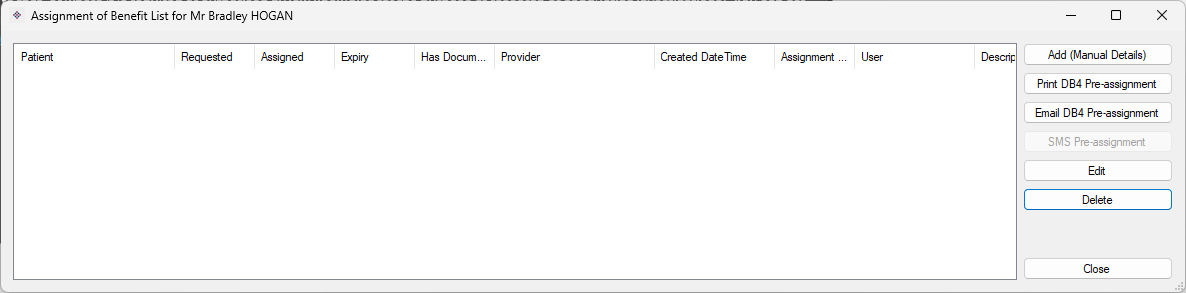
Bring up the Patient in the Accounting screen and either go to Reception Menu -> Assignment of Benefit -> Patient Assignment of Benefit List, or Edit Patient -> Assign Ben. You will see a screen which is a list of the patient's previous assignment of benefits. Or from the Appointment Book, with an appointment selected go to Appointment Menu -> Assignment of Benefit -> Patient Assignment of Benefit List, or Edit Appointment -> Assign Ben.
This shows a review of all of the Patient's AoBs, but you can also Generate Pre-Assignment from this screen.
Generate Pre-Assignment
Click Generate Pre-Assignment.
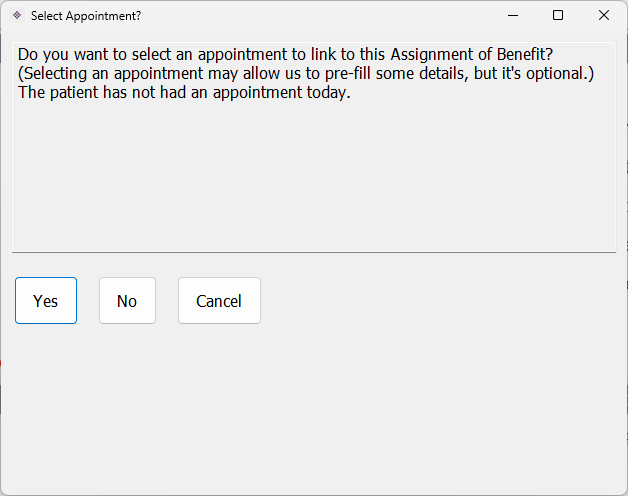
You will firstly be prompted if you want to select an appointment (to pre-fill details).
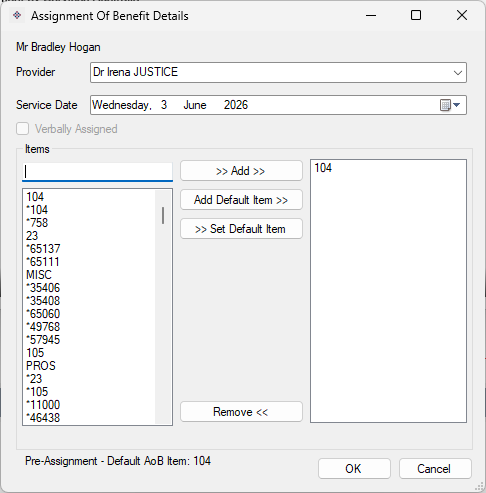
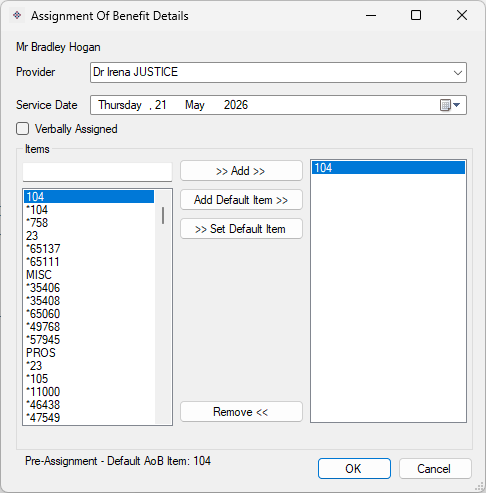
You will then be asked to provide service details of the AoB. The service date should be as accurate as possible - if it differs you may need to generate a new AoB.
The next step from that is the action (i.e. patient signature). Please see the Post Assignment section for information about the different assignment actions.
Recording Manual Assignment
If the patient has replied via email or brought in a signed form, you can Add Manual Details, or Edit the AoB line and untick "Requested Only" and then indicate the date it was assigned though and/or add in description. A reply via email can constitute record keeping so long as email records are retained (potentially you could Import a screenshot of this email reply if you were inclined to do so).
Billing
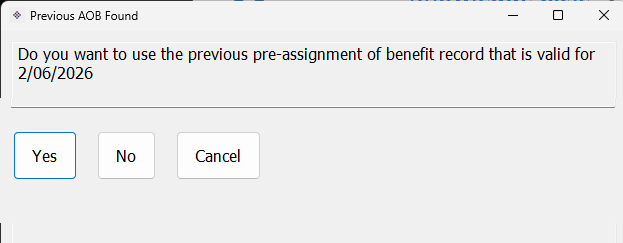
Later when billing you will be prompted if you want to use this AoB and if you choose YES it will show on screen/print. Note if you choose NO then Post Assignment steps above apply.
Later when you do the billing and click OK:
Review
If you wish to review a specific patient's AoB go to Reception Menu -> Assignment of Benefit -> Patient Assignment of Benefit List, and you can review previous assignments recorded here.
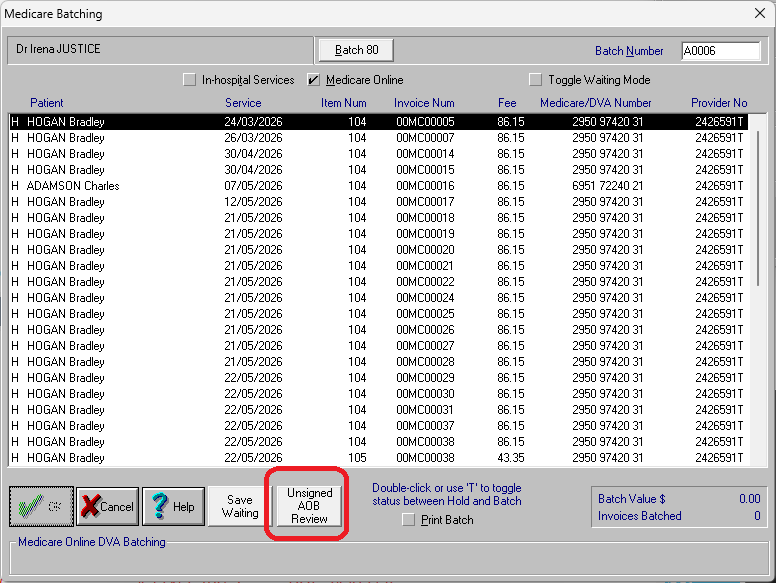
You can also review Unsigned AoB via the Batching screen. As these AoB records would have automatically generated at the time of billing you should only really need to review unsigneds, but you can set the "Is Assigned" option to the middle dash option (i.e. not ticked and not unticked either) and Apply Filter.
Alternatively you can also mass review via Reception Menu -> Assignment of Benefit -> Review Assignment of Benefit List (has the same Filter options).