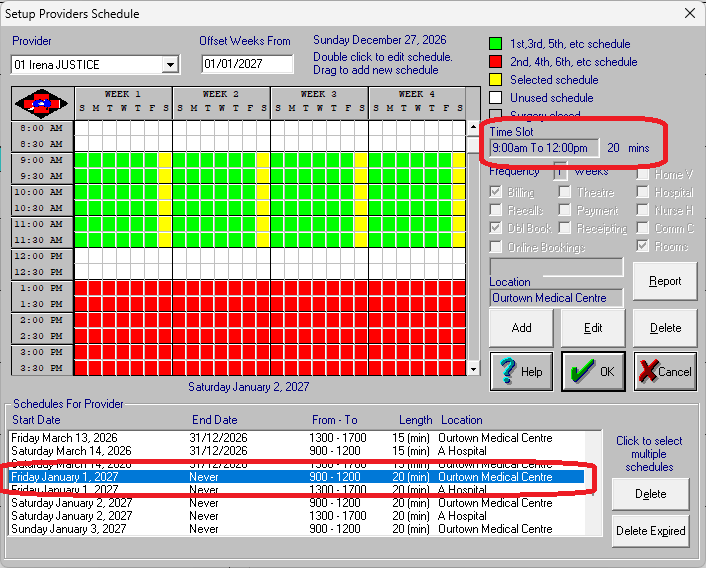
In Medilink if you want to change appointment book lengths you need to pick an appropriate date in future (when you have few appointments). This is because, otherwise it will not properly fit in existing appointments in to the new slots (you can try it, but you'll find that it doesn't display or let you click on appointments in some cases).
In the instructions example below we are 6 months out of the change, and want all appointments after 1st Jan 2027 to be a 20min slot instead of the old 15min slots.
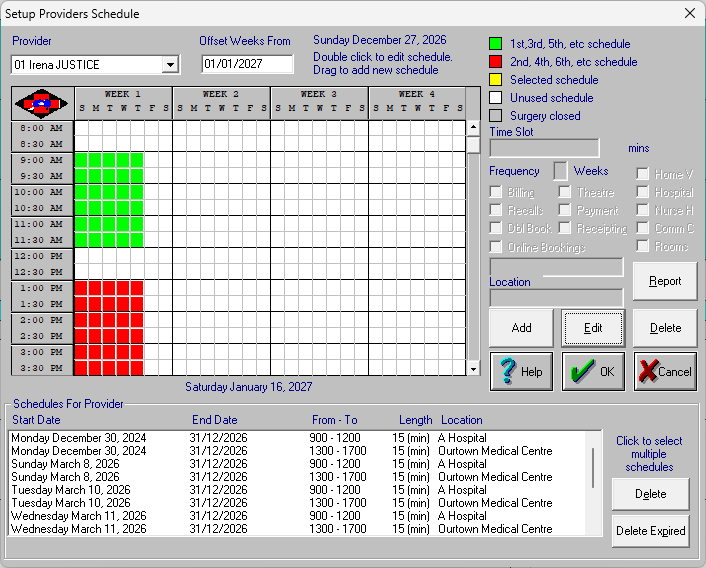
1. Appointment Book -> Setup Menu -> Providers Weekly Schedule. Choose Provider and set offset date at top, example 1st Jan 2027.
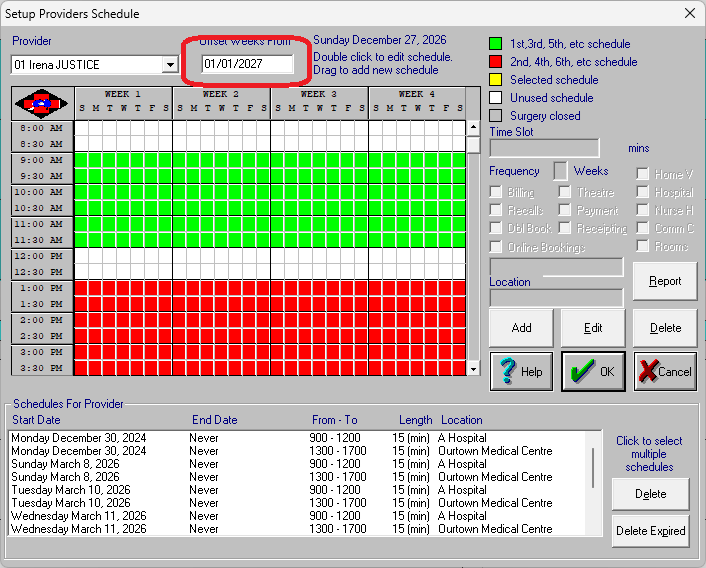
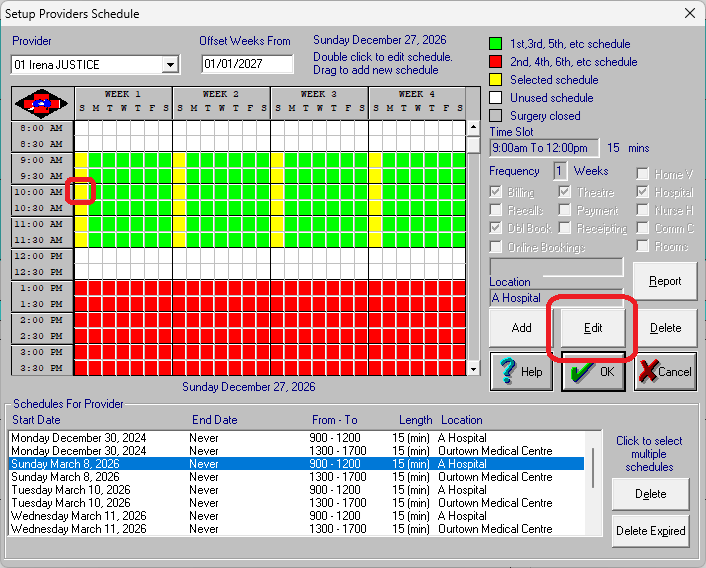
2. Highlight a schedule (click any square), then click Edit
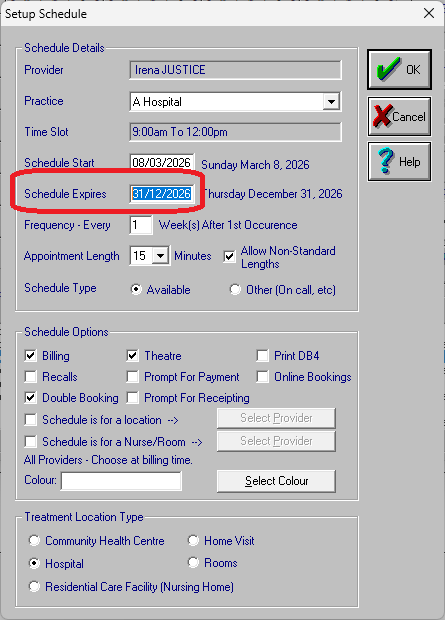
3. Set an expiry date then click OK. Note it doesn't have to be the same day of the week, just needs to be before the new schedule starts. Tip: copy the date text by highlighting it and CTRL+C.
4. Repeat for additional schedules. When finished it should look like below. Tip: if you copied the expiry date text you can click in the Expiry field and paste CTRL+V.
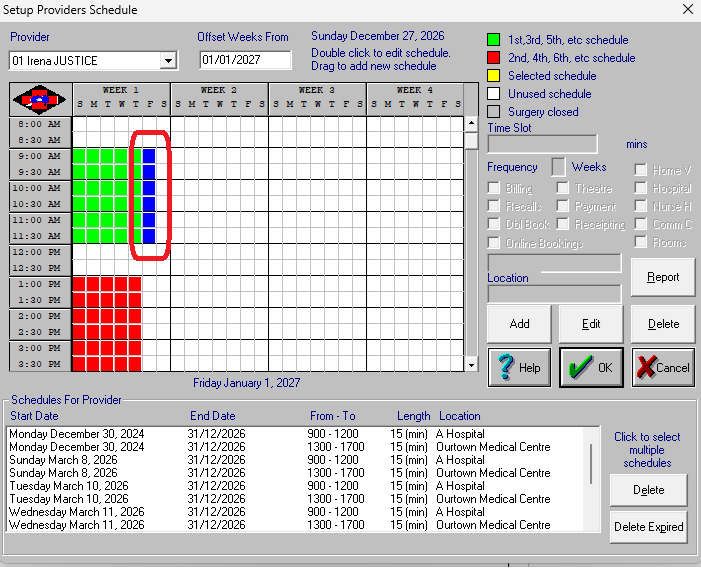
5. Create a new schedule by clicking and dragging down to fill the desired blank slots. In my example I have set it to be Fri 9am to 12 midday.
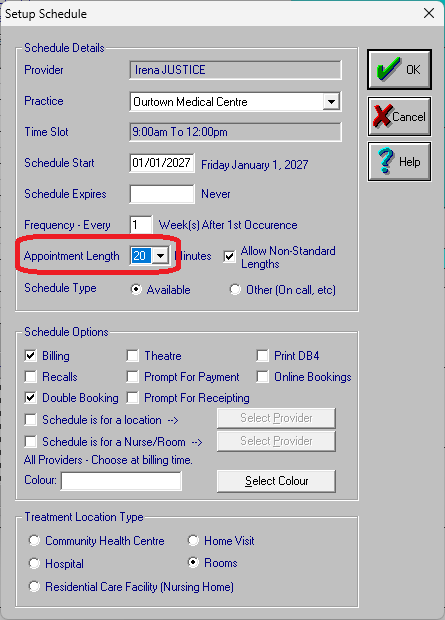
6. Make sure the appointment length is what you want, for example 20mins, plus any other details you want (i.e. you might set an expiry date etc).
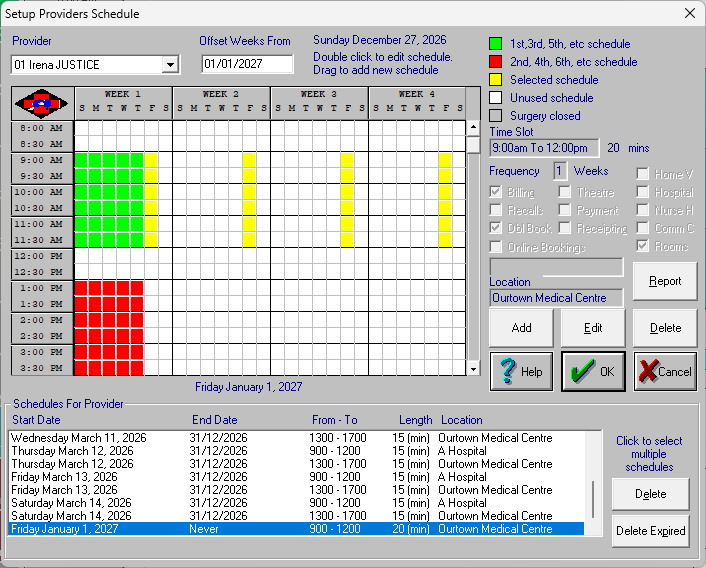
7. You will now see it creates a schedule for those days, in the example Fridays. Repeat to fill in all of the days you want.
8. Once complete, change provider for additional providers.